TextNow Not Working? 10 Fixes for Calls & Texts Not Sending
We at TextNow APK have been observing that a large number of users are complaining that their TextNow calls are not connecting or their texts are simply stuck on “Sending” and never getting delivered. This becomes a real headache especially when you are relying on TextNow as your primary or business communication tool. So we thought to break this topic down completely and walk you through every possible reason and its fix. Let’s get started without wasting any more time.
Why is TextNow Not Working?
Before jumping into the fixes, you need to understand one important thing. TextNow is a VOIP (Voice Over Internet Protocol) application. This means unlike your regular cellular network, TextNow routes all your calls and text messages entirely through your internet connection — whether that is WiFi or Mobile Data. So whenever something goes wrong, it is almost always related to your internet, your app, your device settings, or TextNow’s own servers. There is no cellular fallback here.
The most common reasons TextNow stops working include:
- Poor or unstable internet connection
- Outdated app version running on your device
- Corrupted app cache or local storage
- Denied app permissions such as Microphone or Notifications
- A temporary server outage on TextNow’s end
- Router-level blocking of VOIP traffic
- Account inactivity or number-related issues
Now let’s fix all of these one by one.
Fix 1 – Check Your Internet Connection
Since TextNow is 100% dependent on your internet, the very first thing you should do is check your WiFi or Mobile Data connection. Open your browser and try loading any website. If it doesn’t load, the problem is your internet — not TextNow.
A few things to check here:
- Switch between WiFi and Mobile Data – If TextNow is not working on WiFi, try switching to your mobile data and test again. If it works on data but not WiFi, the problem is with your router.
- Move closer to your WiFi router – Weak WiFi signal is one of the most common causes of failed VOIP calls and undelivered texts.
- Toggle Airplane Mode on and off – This forces your device to get a fresh network connection and often resolves minor connectivity glitches instantly.
- Disable your VPN – If you are using a VPN, turn it off and try again. TextNow strictly monitors VPN usage and some VPN services also block VOIP traffic entirely. We have covered why TextNow bans users using VPNs in detail in our earlier blog.
Fix 2 – Force Close and Restart TextNow
A lot of times the app gets stuck in a bad state in the background. Simply pressing the home button does not truly close the app — it keeps running behind the scenes with a broken connection. You need to Force Stop it completely.
On Android:
- Long press the TextNow icon.
- Tap App Info.
- Tap Force Stop and confirm.
- Relaunch the app after 5 seconds.
On iOS:
- Swipe up from the bottom to open the App Switcher.
- Find the TextNow card and swipe it upward.
- Wait 5 seconds and reopen the app.
After force closing the app, also toggle your WiFi off and back on before reopening TextNow. This ensures the app reconnects through a fresh network path.
Fix 3 – Clear the TextNow App Cache
Your app stores a local cache of messages, media, and login tokens on your device. Over time this cache can become corrupted — especially after a phone OS update — and it starts causing calls to fail and texts to get stuck in delivery loops.
To clear cache on Android:
- Go to Settings → Apps → TextNow.
- Tap Storage & Cache.
- Tap Clear Cache.
- Reopen TextNow and test.
This does not delete your messages or your account. It only clears the temporary files. If clearing the cache alone does not solve the problem, you can also tap Clear Storage — but be aware this will delete your local chat history since TextNow does not back up your messages to the cloud.
On iOS, there is no direct cache clearing option. Go to Settings → General → iPhone Storage → TextNow → Offload App and then reinstall it from the App Store.
Fix 4 – Update TextNow to the Latest Version
TextNow regularly updates its backend servers and communication protocols. If you are running an older version of the app, it may no longer be fully compatible with TextNow’s current servers — causing calls to drop, texts to fail, or the app to behave unexpectedly.
The current stable version as of 2026 is V25.35.2.0, which introduced calling without WiFi, fixed the iPad signup bug, resolved the black screen error, and updated the GIPHY integration.
How to update:
- Play Store users: Open Google Play → search TextNow → tap Update.
- APK users: Download the latest version directly from TextNow APK and install it over your existing app. Your account and number will be preserved.
- iOS users: Open the App Store → tap your profile → scroll to find TextNow → tap Update.
To check your current version, open TextNow → tap the Menu → Settings → scroll to the bottom.
Fix 5 – Check and Grant All App Permissions
This is one of the most overlooked causes of TextNow not working properly. Android and iOS updates frequently reset app permissions without informing you. If your microphone permission has been revoked, your calls will connect but there will be no audio on either end. If notification permission is denied, incoming calls will simply never ring.
Permissions TextNow needs to work fully:
- Microphone – Required for all voice calls
- Notifications – Required for incoming call and text alerts
- Storage / Media – Required for sending picture messages (MMS)
- Background App Refresh (iOS) – Required to receive messages when the app is minimized
- Battery Unrestricted (Android) – Required to keep the app alive in the background
On Android: Settings → Apps → TextNow → Permissions → Enable all required permissions. Also go to Battery → select Unrestricted so Android’s battery saver does not kill the app in the background.
On iOS: Settings → TextNow → Enable Microphone, Notifications, and Background App Refresh.
Fix 6 – Check if TextNow Servers are Down
Sometimes the problem has nothing to do with your device at all. TextNow, Inc. operates its infrastructure out of Waterloo, Canada and like any tech company, it experiences occasional outages and maintenance windows. During these periods, no fix on your end will restore the service.
How to check if TextNow is down:
- Visit downdetector.com and search for “TextNow” to see real-time user reports.
- Check @TextNow on X (formerly Twitter) — they post service status updates during outages.
- Search “TextNow down” on Reddit’s r/textnow community for user discussions.
If it is a server outage, the only option is to wait. TextNow typically restores service within a few hours for minor issues.
Fix 7 – Fix Texts Stuck on Sending or Not Delivered
If your issue is specifically that texts are not sending while calls might still be working fine, there are a few targeted fixes for this:
- Check your device storage – TextNow needs at least 200MB of free storage to process outgoing messages. If your phone storage is almost full, clear unnecessary files and try again.
- Delete and resend the stuck message – Long press the stuck message, tap Delete, close the conversation, reopen it, and send a fresh message.
- Check the recipient’s number – Some toll-free numbers, short codes, and enterprise lines cannot receive messages from VOIP-originating numbers like TextNow. This is a carrier-level restriction and is not something TextNow or you can bypass.
- Avoid sending to recently blocked numbers – If the recipient has blocked your TextNow number, messages will appear as sent on your end but will never be delivered to them.
Fix 8 – Fix VoIP Call Failures (Advanced Network Fix)
If your calls are consistently failing or dropping even though your internet is working well, the problem is likely at the router or ISP level. Some routers — particularly those used in schools, offices, and hotels — block UDP (User Datagram Protocol) packets, which is the transmission layer that VOIP calling depends on.
Try these advanced network fixes:
- Change your DNS to 1.1.1.1 or 8.8.8.8 – Some ISPs throttle VOIP traffic through their default DNS servers. On Android, go to WiFi Settings → long press your network → Modify → Advanced → DNS and enter 1.1.1.1 (Cloudflare) or 8.8.8.8 (Google).
- Disable your carrier’s WiFi Calling feature – Your carrier’s native WiFi Calling sometimes conflicts with TextNow’s VOIP stack. Temporarily disable it under Settings → Phone (iOS) or Settings → Network (Android).
- Use mobile data instead of WiFi – If calls fail on WiFi but work on mobile data, your router has SIP filtering enabled. Contact your internet provider or router administrator and request that SIP traffic be allowed on ports 5060 and 5061.
Fix 9 – Perform a Clean Reinstall of TextNow
If none of the above fixes have worked, it is time for a complete clean reinstall. This removes all local app files, including any corrupted authentication tokens that a simple cache clear cannot touch. Do not worry — your TextNow number is linked to your account on TextNow’s servers and will be fully restored as soon as you log back in.
- Note your TextNow login email and password.
- Uninstall TextNow completely from your device.
- Restart your device.
- Download and install the latest version from TextNow APK (Android) or from the App Store / Play Store.
- Sign in with your existing account — your number and settings will reappear automatically.
Important: Uninstalling the app will permanently delete your local chat history. Screenshot or back up any important conversations before you proceed.
Fix 10 – Contact TextNow Customer Support
If you have tried all nine fixes above and TextNow is still not working, the issue is likely account-specific — such as a flagged account, a number approaching deactivation due to inactivity, or a billing issue with a premium plan. These are things that only TextNow’s support team can resolve.
How to reach TextNow Support:
- In-App: Open TextNow → Menu (☰) → Help → Submit a Request
- Web: Visit support.textnow.com and scroll to Contact Us
- Twitter/X: Tweet or DM @TextNow — their support team is typically responsive within a few hours during Eastern business hours
When writing to support, always include your TextNow phone number, device type, app version, and a clear description of the issue. This saves a lot of back-and-forth time and gets you a faster resolution. Their support team responds within 24–48 hours on business days.
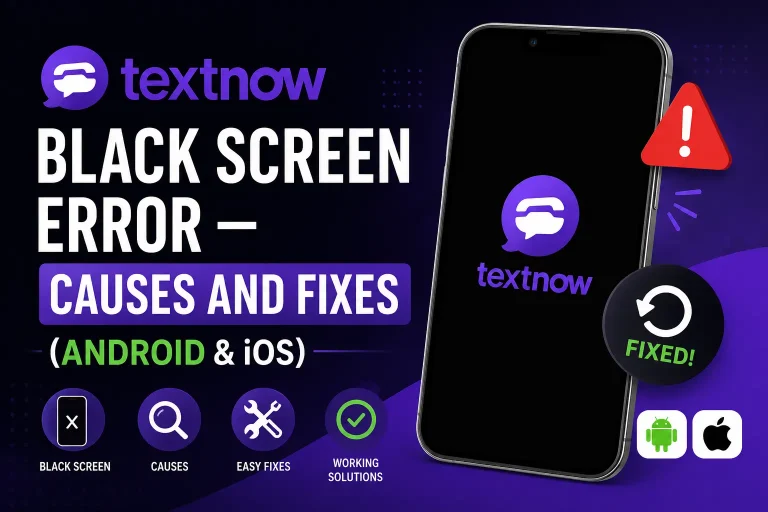
TextNow Black Screen Error — Causes and Fixes (Android & iOS). Learn the reasons why and how you can rectify them.
Conclusion
TextNow APK not working can feel frustrating but as you have seen above, almost every problem has a clear cause and a straightforward fix. Start from the top — check your internet, force close the app, clear the cache, and confirm your permissions are all set correctly. In most cases, one of these first five fixes will resolve the issue immediately. If the problem is more persistent, the advanced network fixes and clean reinstall will almost certainly do the job. And if all else fails, TextNow’s support team is there to help.